
Create and Manage E-BCA Assessments
Assign and Manage Assessments
- From the left sidebar, navigate to your Dashboard.

- Under the Recruitment & Promotion category, select E-BCA.
- You will be redirected to the E-BCA page.
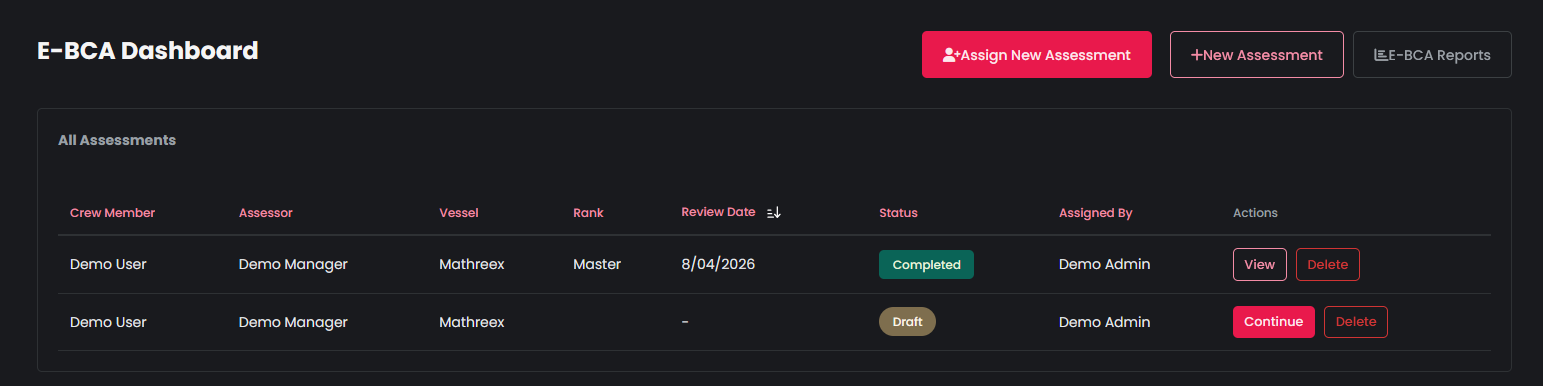
- On the top right of the page, you can find the following options.
- On the top right of the page, you can find the following options.
- Assign New Assessment
From here, you can select an assessor and the crew member that will be assessed: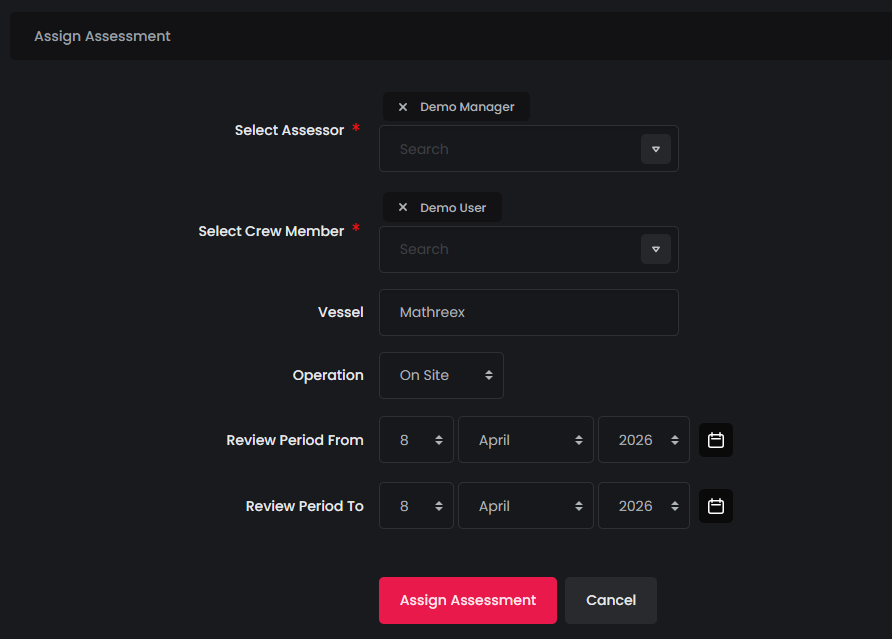
- New Assessment

Here, you can start a new assessment by entering the user’s details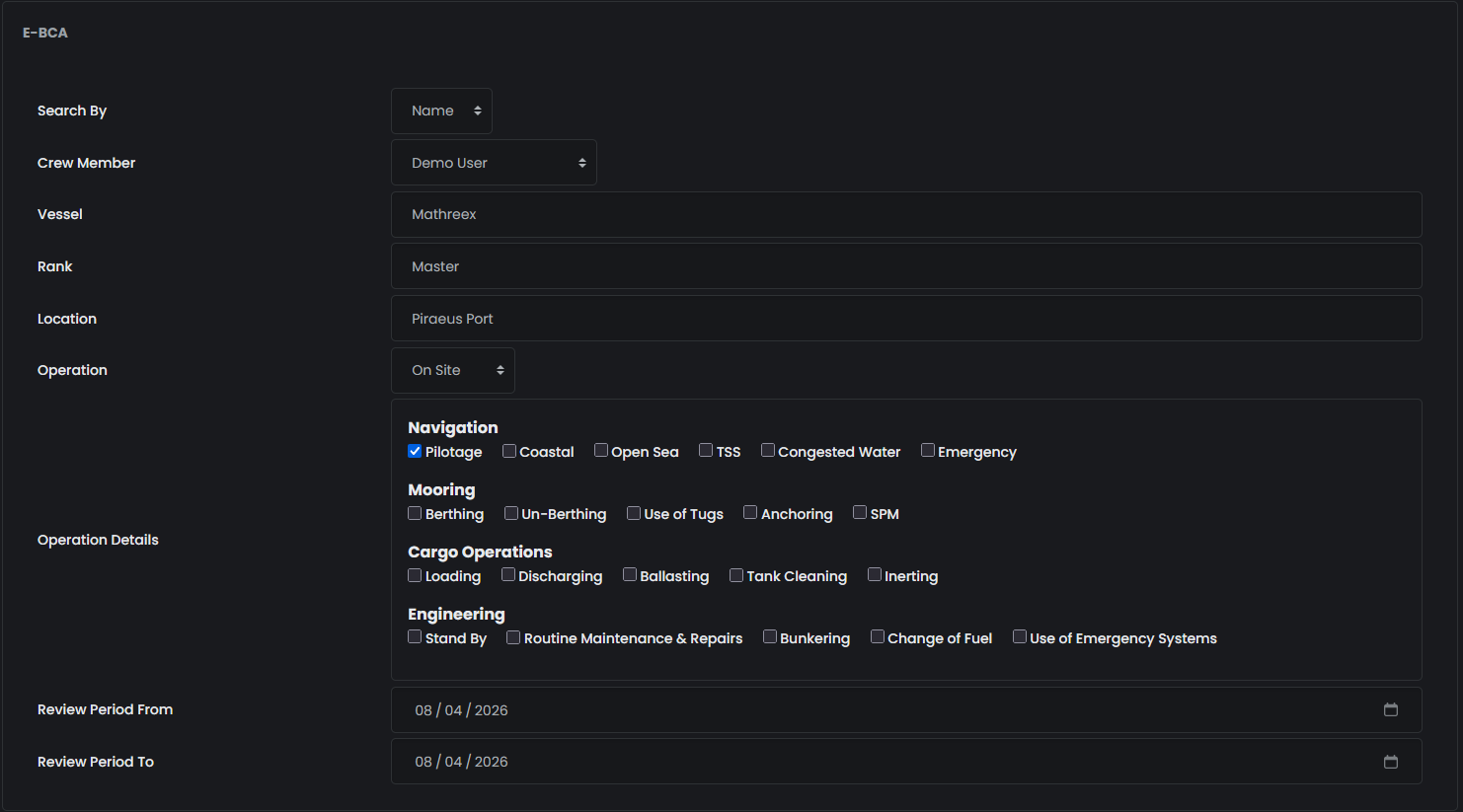
- E-BCA Reports
Here, you can select to view a specific person’s submitted E-BCA’s reports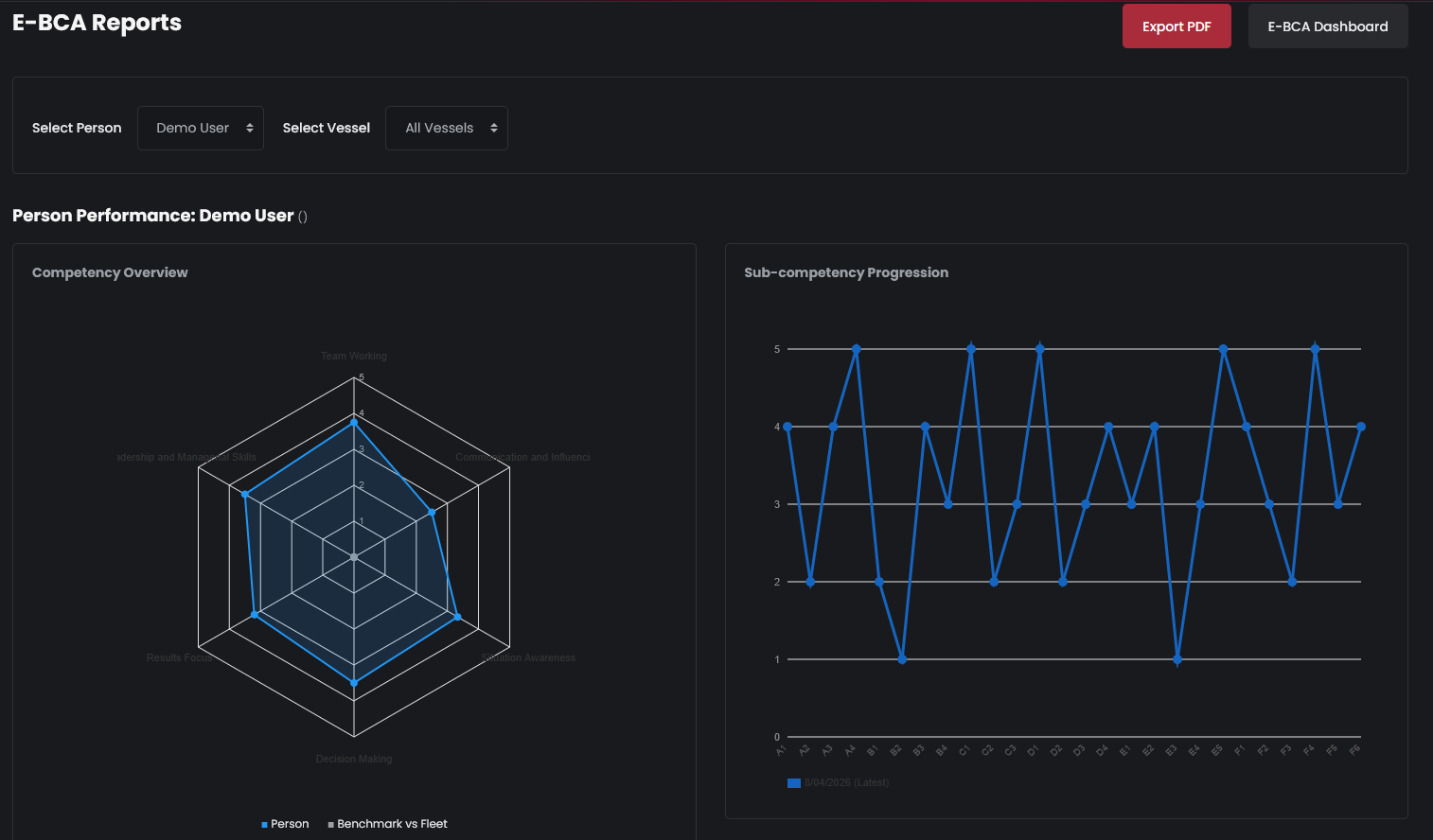
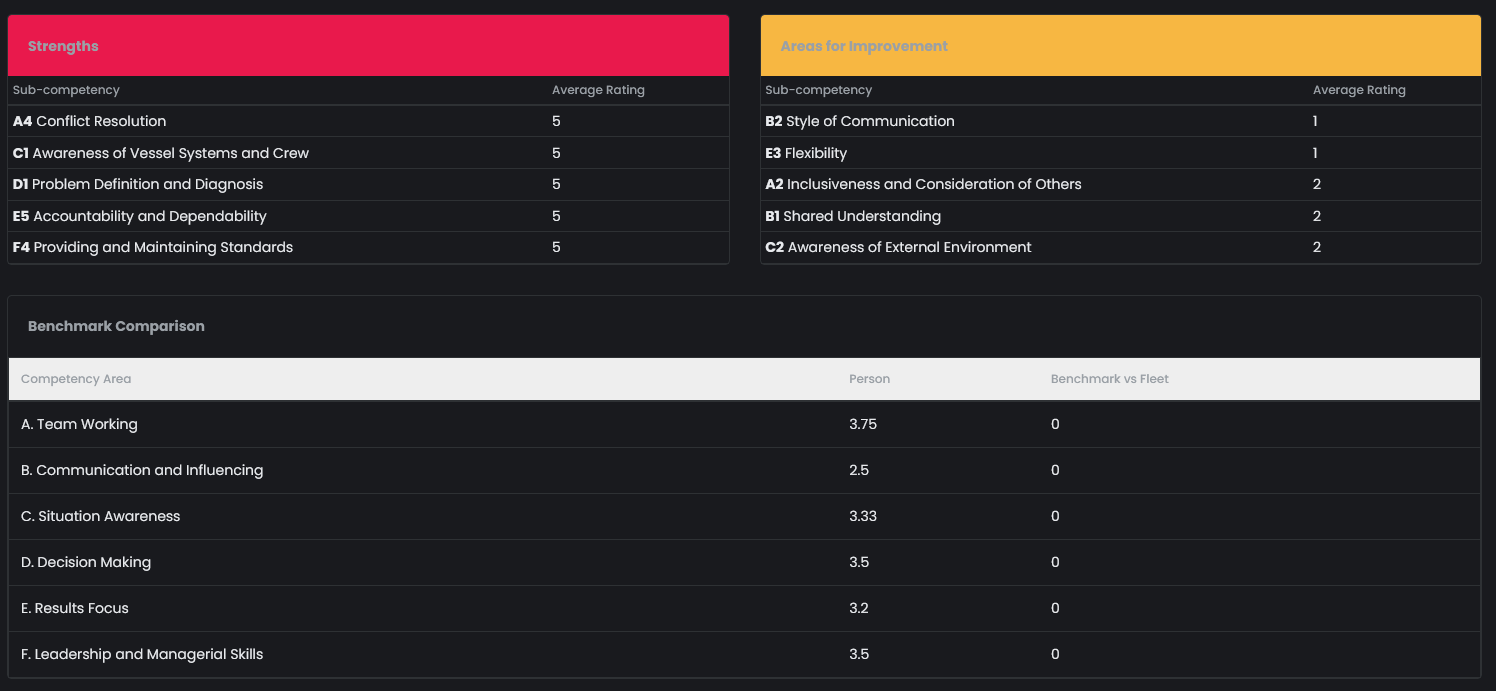
You can also export this report as PDF, by clicking the Export PDF button at the top right
- When filling out an assessment you will be asked to rate specific competencies and select a predetermined comment
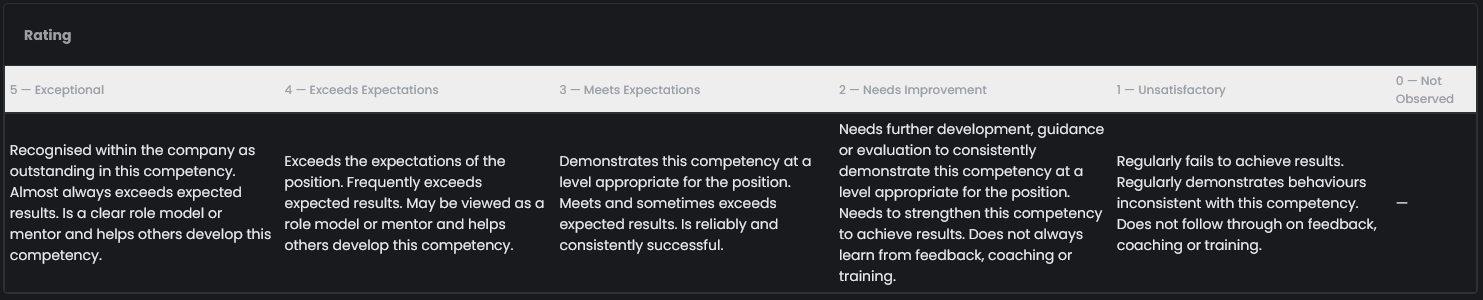
- Ratings are between 0-5, as available on the table below
- Once a rating is selected a menu will pop out, asking the assessor to select a comment based on his rating

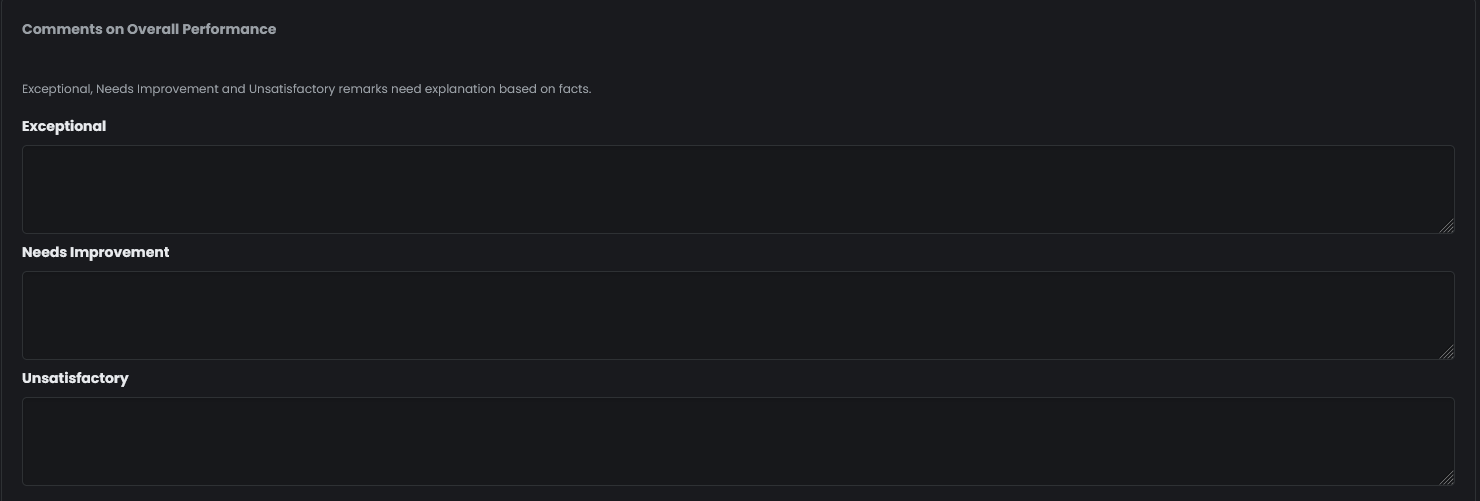
- At the end of the assessment, the assessor will also be asked to enter his own comments, on the overall performance of the person being assessed.
- At the bottom of the page, you can select to save the filled E-BCA assessment as a draft, in case you will need to edit it again, submit it to save the results or cancel it.

- Ratings are between 0-5, as available on the table below
- You are able to view a submitted assessment by selecting to do so on the E-BCA Dashboard

Here you can view the submitted information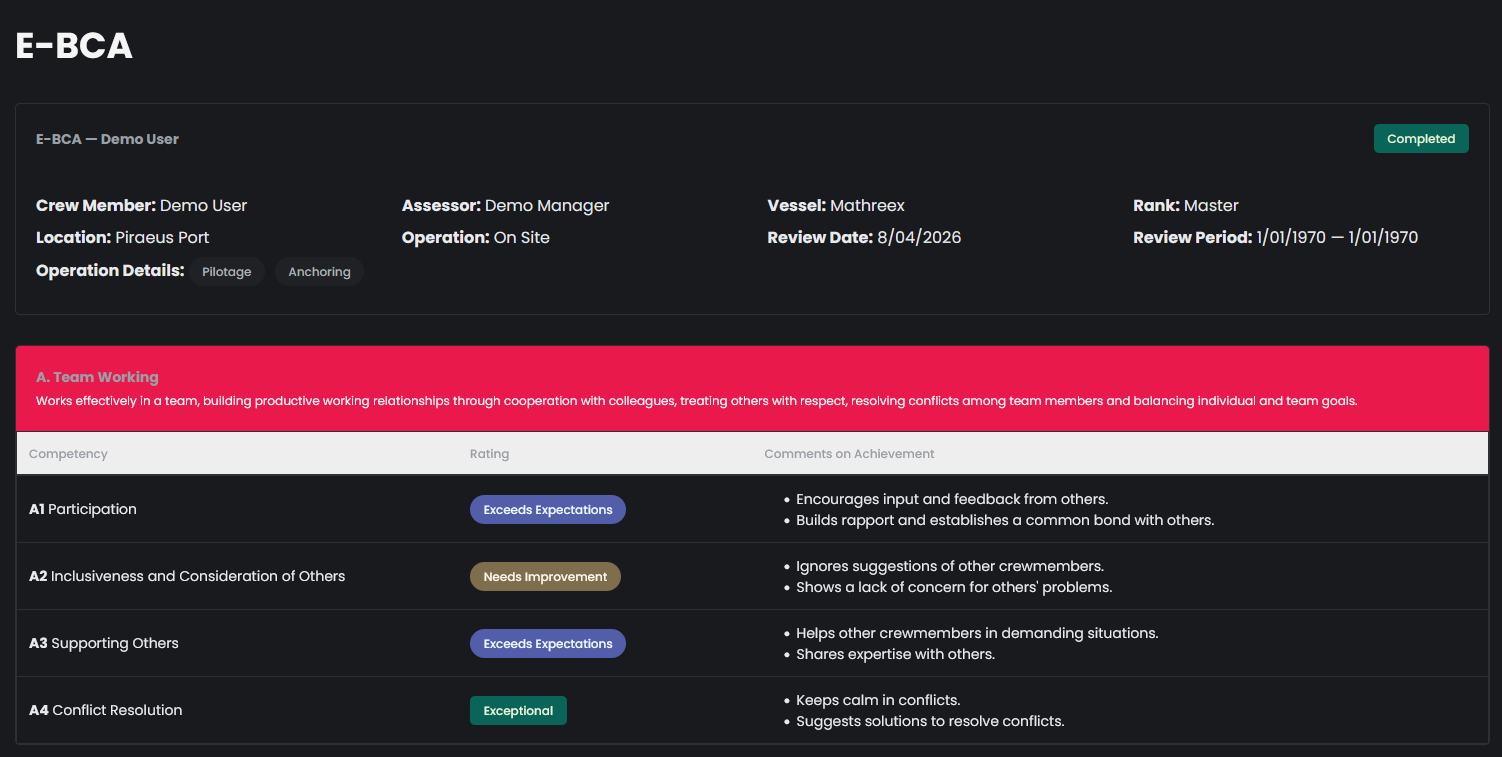
At the bottom of the page, you can click the Export PDF button to export the results
Finally, please note that based on the negative ratings of the assessments, a learning path is assigned to the assessed user, to assist him with improving on those competencies.