
Psychometric, CES Assessments & English Tests – User Enrolment and Report
Psychometric Assessments
- From the left sidebar, navigate to your Dashboard.

- Under the Recruitment & Promotion category, select Psychometric Assessment Management.
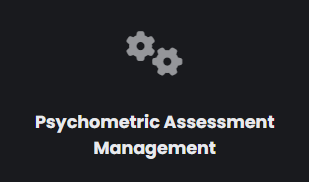
- Select the Psychometric Assessment you want to enroll users in.
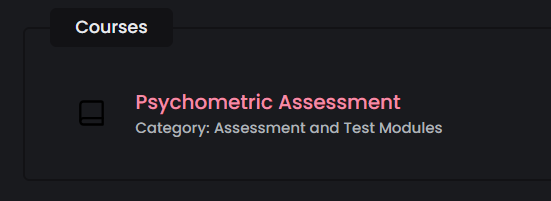
- Go to Participants Tab.

- Select the Enrol Users button.
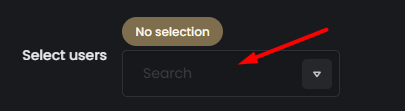
- Type the full name of the user (or units below) that you want to enrol.
- Select the Enrol Selected Users and Units button.
- To view the Psychometric Assessment Report, return to the Recruitment & Promotion tab and select Psychometric Assessment Report.
- Find the Psychometric Evaluation report you want to view and select it.

- Click View Report next to the user whose Psychometric Evaluation you want to view.

- You can view a complete and detailed Psychometric Evaluation Report, which includes comprehensive statistics, visual representations, and data analysis.
CES (Crew Evaluation System) Assessment
- From the left sidebar, navigate to your Dashboard.
- Under the Recruitment & Promotion category, select CES Management.
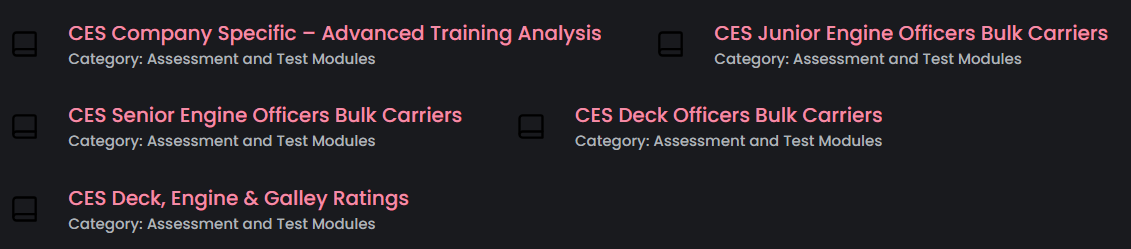
- Select the Crew Evaluation System Assessment you want to enroll users in.
- Go to Participants Tab.
- Select the Enrol Users button.
- Type the full name of the user (or units below) that you want to enrol.
- Select the Enrol Selected Users and Units button.
- To view the CES Assessment Report, return to the Recruitment & Promotion tab and select CES Report.
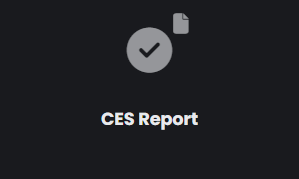
- Select a course, a questionnaire and a user.
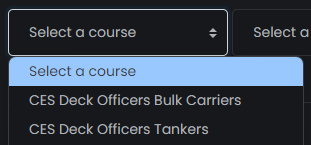
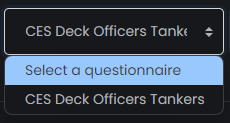
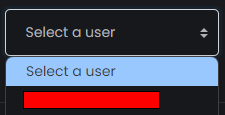
- You can view a complete and detailed CES Assessment Report, which includes comprehensive statistics, visual representations, and data analysis.
CES (Crew Evaluation System) Assessment
- From the left sidebar, navigate to your Dashboard.
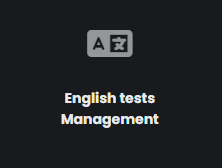
- Under the Recruitment & Promotion category, select English Tests Management.
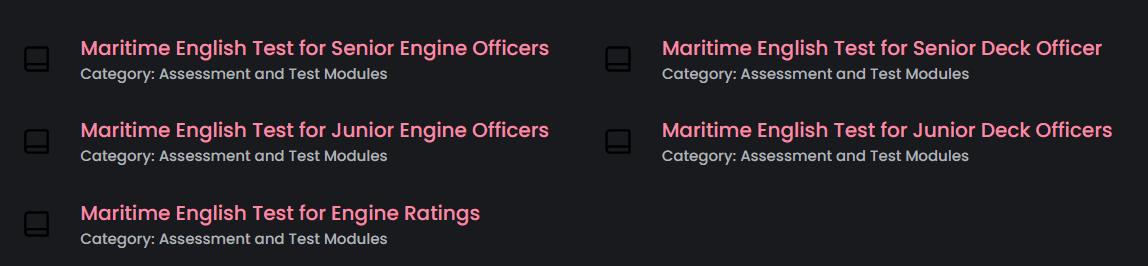
- Select the Maritime English Test you want to enroll users in.
- Go to Participants Tab.
- Select the Enrol Users button.
- Type the full name of the user (or units below) that you want to enrol.
- Select the Enrol Selected Users and Units button.